
Introduction
This Android soft-keyboard provides a fast and convenient way to scan barcodes, text (OCR) and NFC tags into any app. The captured data appears in the target app as entered manually by the user. Modifying target apps is not necessary.
Download & Installation
The Scanner Keyboard app can be tested for free. The free version displays a demo hint in irregular intervals. Please upgrade to the unlimited version (via in-app purchase) to remove this limitation. Download the Scanner Keyboard using the links below:
- Scanner Keyboard for Android (Google Play)
- For users with volume license requirements, TEC-IT offers a bulk-license version of the app
Setting up Keyboard
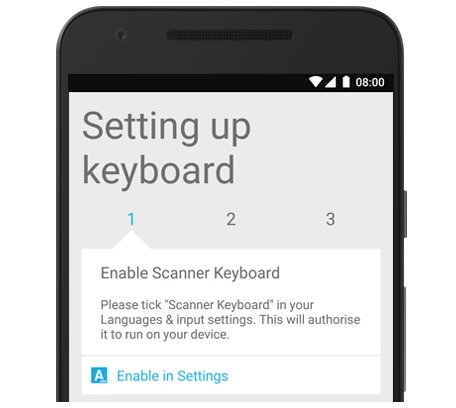
The setup process is very simple and done in a few seconds. The guided setup routine helps you to setup the Scanner Keyboard in just three steps:
- Enable Scanner Keyboard
Please tick Scanner Keyboard in your Languages and Input Settings to authorize it to run on your device (smartphone or tablet). - Switch Input Methods
Select Scanner Keyboard as your active input method. - Finish Setup
Congratulations, you have almost completed the setup. Now you only have to grant the app permissions and select the preferred barcode scanner (see next step).
Initial Steps
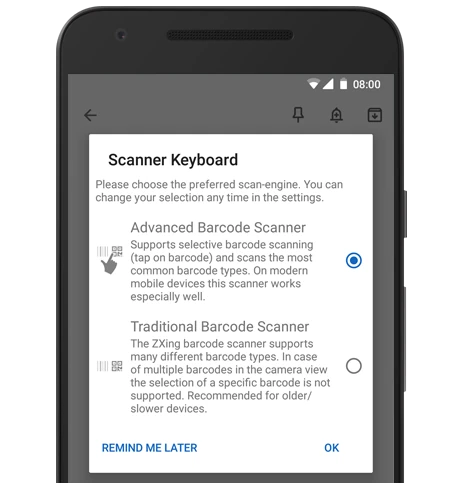
After the setup you have to perform the following two steps:
- Grant App Permissions
The app asks you to grant the required app permissions (Camera, Contacts, Storage), when starting it for the first time. App permissions can be changed anytime under Keyboard preferences > Scanner keyboard preferences > About > App permissions. Xiaomi users may need extra permissions. - Select Barcode Scanner
The app asks you to select your preferred barcode scanner type (Advanced Barcode Scanner / Traditional Barcode Scanner), when scanning barcodes for the first time. The selection can be changed anytime under Keyboard preferences > Scanner Keyboard preferences > Barcode Scanner. - Done! Now you are ready to type or scan into any app.
Reactivating the Scanner Keyboard
Please perform the following steps to re-enable the Scanner Keyboard if it was deactivated:
- Navigate to Android Settings > Language & Input
- Tap on Virtual Keyboard and Manage Keyboards, then select Scanner Keyboard. You need to accept the standard security warning (see below).
Older Android Versions
For older Android versions you may need to navigate to Android Settings > Language/Keyboard, check Scanner Keyboard and confirm the security warning. After enabling the keyboard, it needs to be adjusted as active input method: touch an input field for some seconds until a menu appears. Select Input method and choose Scanner Keyboard.
User Interface
Main Menu
The Scanner Keyboard resembles the layout of the Android standard keyboard - you will immediately be familiar with it. The Scanner Keyboard menu is located in the suggestion bar on top of the keyboard:
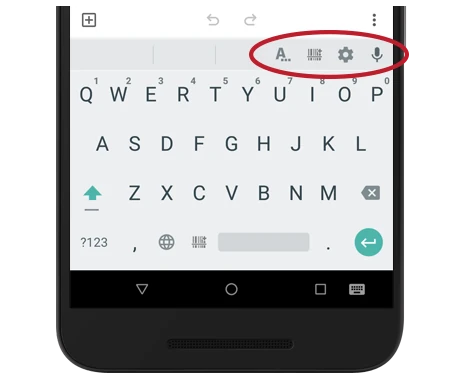

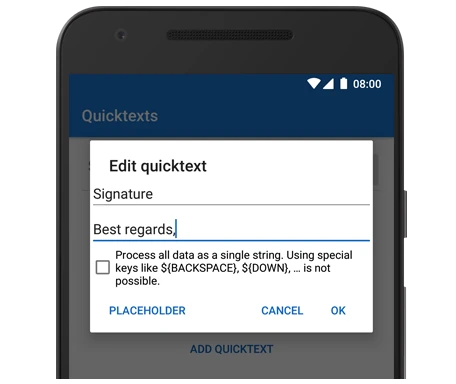
Quicktext
Long-tap the "A" icon to edit Quicktexts (aka macros). A short tap inserts the defined Quicktext in the active input field.

Scanner Key
Opens the camera bar-code scanner, the text scanner (OCR), the NFC tag reader - or all if enabled in the settings.

Settings
Tap on this icon or long-press the comma key to change the Scanner Keyboard settings.

Voice Input
Tap on the microphone icon to activate the voice input.
Scanner Key
The integrated scanners are invoked by tapping the Scanner Key button. The required scanner is either invoked directly (if only a single scanner was activated in settings) or via a menu (if multiple scanners were activated). Scanners can be adjusted in the Keyboard preferences under Scanner keyboard preferences.
Scan Barcode
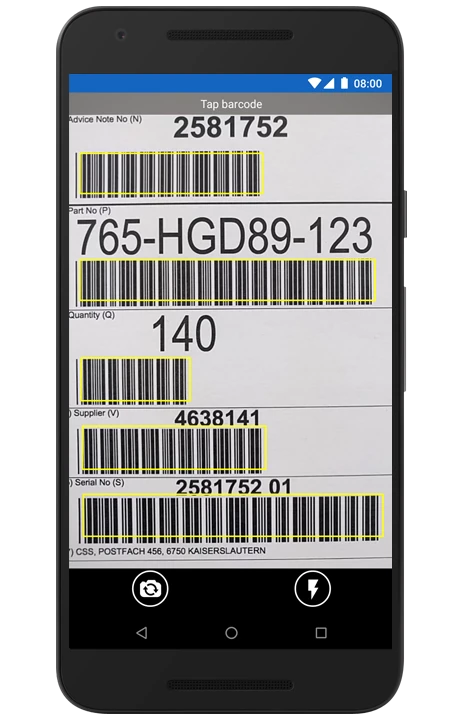
The Barcode Scanner supports two scanner-engines. Users are able to select their preferred barcode scanner engine when scanning barcodes for the first time. This selection can be changed anytime in the preferences as well:
- Advanced Barcode Scanner
- The advanced scanner supports selective barcode scanning (tap on barcode if multiple barcodes are visible in the scanner view) and scans the most common barcodes types. On modern devices, this scanner works especially well.
- Traditional Barcode Scanner
- This scanner is already known from previous versions of the keyboard. It supports many different barcode types and is recommended for older and/or slower devices (see Compatibility / Limitations for details).
The following buttons are displayed in the barcode scan view:

Camera Switching
With a tap on this icon, you can quickly switch between front and back camera.

Flashlight
Enables flashlight support for working under suboptimal scanning conditions.
Scan Text (OCR)
The Text Scanner (OCR) converts Latin text (or characters) captured by the camera into editable text: the detected text is automatically inserted into the target app, the text appears like manually typed on the keyboard. Text scanning is supported from Android 5.0 onward and requires installed Google Play Services. Please note: Recognition of Latin-script, typewritten text is not 100% accurate - even where clear imaging is available.
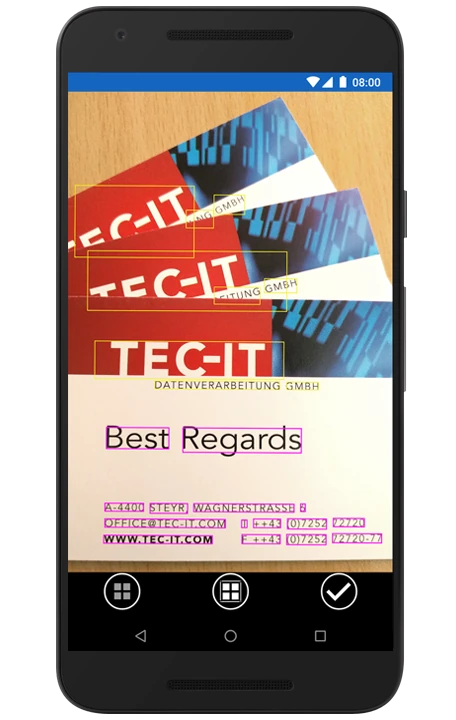
The following buttons are displayed in the text scan view:
Camera Switching
With a tap on this icon, you can quickly switch between front and back camera.
Flashlight
Enables flashlight support for working under suboptimal scanning conditions.

Scan Text
Start text recognition with a tap on the "T" button.

Cancel Selection
Tap this button to clear all text selections.

Select All
Tap this button to select all recognized text passages.

Confirm
Tap this button to insert the selected text into the target app.
Read NFC Tag
In addition to the barcode and text scanner, the Scanner Keyboard offers an NFC Reader for ISO 15693 (NfcV), NfcA, NfcF, IsoDep and NDEF tags. Tags can be adjusted under Keyboard preferences > Scanner keyboard preferences > NFC Tag Reader > Settings.
Start External Scanner
The Scanner Keyboard can also be used with external scanner apps. If a suitable external app is installed, this app can be adjusted under Keyboard preferences > Scanner keyboard preferences > External Scanner Apps.
Further Input Methods
In addition to the barcode, text and NFC scanner, this keyboard supports the following input methods:
- Manual Typing
- The Scanner Keyboard can - of course - be used as keyboard for manual input with features like spelling corrections and suggestions.
- Quicktext / Macros
- Often used texts (e.g. signatures or welcome text) can be inserted using the Quicktext (macro) function.
- Voice Input
- The Scanner Keyboard supports speech recognition (voice to text) as input method.
Settings
The following options are available if you tap on the icon Settings ( ⚙ ) and select Keyboard preferences:
Scanner Keyboard Preferences
License State
Shows the current license state of the App. The full version is available on Google Play. Bulk-licenses are available directly from TEC-IT.
Common
Here you will find common Scanner Keyboard preferences:
- Clipboard
If enabled, scanned data will also be made available in the clipboard. - Advanced Settings
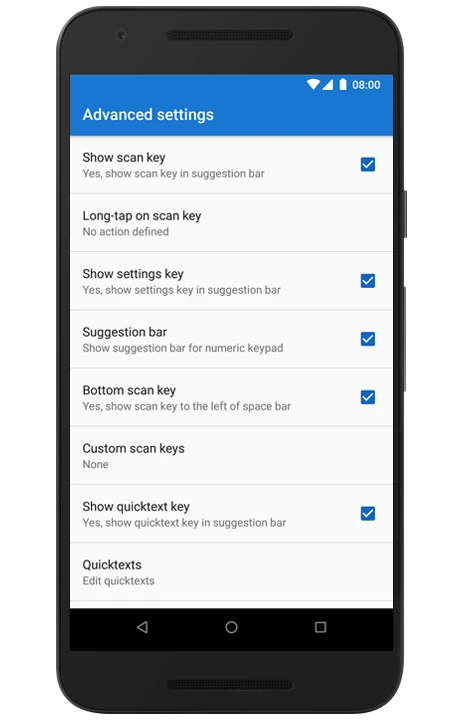
The following advanced settings can be enabled/disabled:
- Show scan key
- Long-tap on scan key
- Show settings key
- Suggestion bar
- Bottom scan key
- Custom scan keys
- Show Quicktext key
- Quicktexts - Batch Scanning
Enables/disables the batch scanning mode.This setting is only available if the active scanner supports batch operation.
Barcode Scanner
Depending on the barcode scanner type, the following settings can be adjusted:
- Enabled
Here you can enable/disable the barcode scanner. - Scanner
Users can switch between the Advanced Barcode Scanner, which supports selective barcode scanning on modern devices, and the Traditional Barcode Scanner, which is recommended for barcode scanning on older/slower devices. - Settings
Advanced Barcode Scanner- Barcodes
- 1D / linear barcodes
- 2D barcodes - Behavior
- Keyboard Orientation Automatic, Portrait, Landscape - Scan Mode First recognized barcode, Tap on desired barcode, Automatic - Scanner Accuracy (higher/slower)
- Flashlight (enable/disable)
- Silent Scan (enable/disable)
Traditional Barcode Scanner- Barcodes
- 1D / linear barcodes
- 2D barcodes
- Barcode character set
- Symbology identifier - Behavior
- Flashlight, Silent scan, Invert scan, Orientation
- Autofocus
- Mode (Normal, Legacy mode, Compatibility mode)
- Autofocus
- Autofocus delay
- Device Dependent Settings
- Continuous focus
- Exposure
- Metering
- Barcode scene mode
- Barcodes
Text Scanner (OCR)
Adjust text scanner relevant options:
- Enabled
Text scanning function can be enabled/disabled. - Scanner
No settings available. - Settings
Adjust behavior like orientation, flashlight or newline character replacement.
NFC Tag Reader
Adjust NFC reader relevant options:
- Enabled
Tag reading function can be enabled/disabled. - Reader
No settings available. - Settings
Enable/disable settings like supported NFC technologies - ISO 15693 (NfcV), NfcA, NfcB, NfcF, IsoDep, NDEF.
External Scanner Apps
The Scanner Keyboard also supports the use of external barcode scanner apps. If installed, compatible scanner apps can be selected for barcode scanning. The following options can be adjusted:
- Enabled
External barcode scanner can be enabled/disabled. - App
Tap to select the required external barcode scanner app. - Settings
Adjust external scanner relevant options.
Keyboard Behavior
The following behaviors can be defined:
- Keyboard Behavior
Define behavior (prefix, suffix, cursor movements, ...) for target-apps. By the means of Simulation Rules the user is able to configure the keystroke simulation mode and cursor movements for a specific target app. - Automatic Scans
If disabled, the autoscan feature is turned off for all Simulation Rules (see below for further instructions). This setting is only available for the internal camera-scanner. - Advanced Settings
The following advanced settings can be enabled/disabled:
- Show soft keyboard
- Swipe keyboard layout
- Swipe to scan
- Swipe to clear all
Import / Export
This section provides functions for importing or exporting the App configuration from/to XML files. Auto-configuration: Whenever a configuration file is found in the Download folder, Scanner Keyboard reads it, applies the settings and renames it thereafter.
- Import
Imports a configuration file (from Google Drive, a local storage location, etc.). - Export
Exports the configuration into an XML-file BarcodeKeyboard.xml. - Password Protection
Here you can set a password to avoid unintended configuration changes. Clear the password to remove the protection.
About
This section provides commands for displaying the user manual, the software version and the copyright information. In addition you can display your license information or enter a manual license.
- App Permissions
Provides the possibility to selectively grant or deny app permissions. - Online Manual
This command shows this user manual in your browser. Please contact us in case of questions, suggestions or if you want to report a bug. - YouTube
This command opens TEC-IT’s YouTube channel with relevant data acquisition videos. - Privacy Policy
This command shows the privacy policy for this app. - Device ID
Displays the serial number of the device. Tap on the serial number to copy it to the clipboard. - About
Displays the current software version, a copyright notice and 3rd party credits.
Common Keyboard Preferences
- Languages
Adjust input language. The language automatically matches the system language of your Android device. - Preferences
Auto-capitalization, vibrate or sound on key-press, pop-up on key-press or voice input key can be enabled/disabled. - Appearance and Layout
Adjust appearance and keyboard layout. The keyboard layout automatically matches the system layout of your Android device. - Text Correction
Enable/disable add-on dictionaries or a personal dictionary, auto-correction, correction suggestions, etc. - Advanced
Enable/disable advanced settings like Emoji palette, app icon in the launcher, key long-press delay, etc.
Simulation Rules
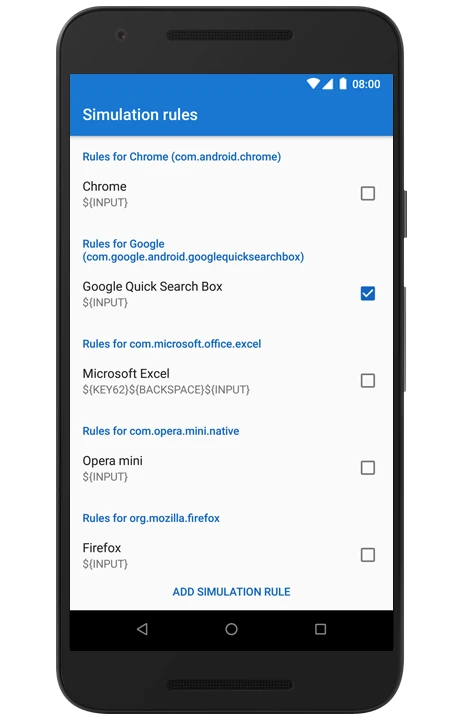
By the means of so-called simulation rules the user is able to configure prefixes, suffixes (like an appended ENTER) and various other settings which are used to scan data into a specific target application. When transforming scanned data into keystrokes, Scanner Keyboard searches the appropriate rule for the current target app. If no such rule is found, it applies the default rule.
Predefined Simulation Rules
The following predefined simulation rules are available and can be enabled/disabled or edited/deleted if needed:
- Rules for Chrome (com.android.chrome)
- Rules for Google (com.google.android.googlequicksearchbox)
- Rules for Microsoft Excel (com.microsoft.office.excel)
- Rules for Opera Mini (com.opera.mini.native)
- Rules for Firefox (org.mozilla.firefox)
- Rules for Firefox Beta (org.mozilla.firefox_beta)
- Default rules
Add Simulation Rule
A new rule can be added with the button Add Simulation Rule. While it is possible to add multiple rules, only one rule can be enabled for a single app or for the default section.
Edit Simulation Rule
Predefined simulation rules can be edited if required. By long-tapping on a rule, you have the following editing possibilities:
- Enable
Enables/disables the rule. - Name
The user-defined name of the rule. - Applies to...
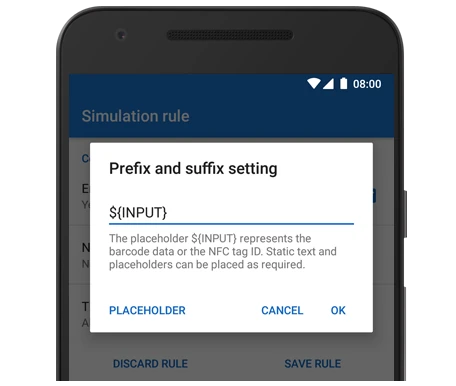
Specifies the app for which this rule should be applied. If you select All Apps this rule will be a default rule (the default rule is applied only if no other app-specific rule exists). - Prefix and Suffix Settings
Static text and placeholders can be placed as required. Scanner Keyboard supports the following placeholders (see Android Key Code List for a complete list of key codes): - ${INPUT} or ${I}: This is the placeholder for the scanned barcode data / OCR data / NFC tag ID
- ${INPUT_UPPER}: Placeholder for the INPUT data in upper case
- ${INPUTn/search/replace/options}: Apply regular expression to INPUT data - see below
- Please note that upper case and regular expressions can also be applied to all DATA placeholders below.
- ${SCAN_DATA}: Scanned barcode/OCR/NFC data
- ${BARCODE_DATA}: Scanned barcode data
- ${OCR_DATA}: Scanned OCR data
- ${NFC_DATA}, ${USER_DATA}: Scanned tag data
- ${NFC_TAG_ID}: Scanned tag ID
- ${ENTER} or ${E}: Enter key
- ${TAB} or ${T}: Tab key
- ${BACK} or ${SB}: Back key
- ${BACKSPACE} or ${B}: Delete key
- ${COPY}: Copy key
- ${PASTE}: Paste key
- ${VOLUME_DOWN}: Volume down key
- ${VOLUME_MUTE}: Volume mute key
- ${VOLUME_UP}: Volume up key
- ${CONFIRM} or ${C}: Confirm key
- ${DOWN} or ${D}: Cursor down key
- ${UP} or ${U}: Cursor up key
- ${LEFT} or ${L}: Cursor left key
- ${RIGHT} or ${R}: Cursor right key
- ${SELECT} or ${S}: Select button key
- ${NOW}: Placeholder for timestamp (current date and time)
- ${WAIT###} or ${W###}: Placeholder for a delay in milliseconds
- ${KEY###}: Generic key code
- ${KEY5}: Phone call
- ${KEY112}: Delete forward key (Del)
- ${F1} ... ${F12}: Function keys F1 to F12
- ${HEX##}, ${x##} or ${X##}: Hexadecimal value
- Key by Key
Scanned barcode data is forwarded keystroke by keystroke (key by key) to the target app. This method is recommended if the target app is a browser or an RDP (remote desktop) application. - Show as Hex Codes
Show hex codes for characters without an existing key code (non printable characters). - Initial Keyboard Layout
Specifies the initial keyboard layout for this rule. Choose from letters, numbers and symbols in shifted or unshifted state. - Automatic Scan
Enable or disable the autoscan feature for this rule. If enabled the keyboard checks if the content (or hint) of an input field matches a trigger pattern (see below). Whenever the cursor is placed into an input field and a match is detected the scanner is invoked automatically. - Look for Trigger-Pattern in...
The keyboard tests for matches of the trigger pattern with the Input hint (an input hint in a field provides the user with information on what he needs to fill in, the input hint is usually displayed in gray color), the Field content or both (Input hint or field content). - Trigger-Pattern
In order to start the scanner automatically when the cursor is placed into an input field, the input hint or the field content must match this trigger pattern. Enter a fixed text or a regular expression.
Simulation Mode
Two methods for simulating user input are available:
- Key by Key
Scanned barcode data is inserted as a single string into the target app. This simulation mode does not support the simulation of special keys like backspace (${BACKSPACE}) or cursor movements (like ${DOWN}). If you have problems forwarding keystrokes to a specific target application you may have to add an application specific rule for the app in question. Most likely browser or remote desktop (RDP) applications require Key by key to forward the scanned data correctly. - Show as Hex Codes
If Key by key is active and this option is selected, characters which can't be mapped to key codes (non printable characters) are forwarded as hexadecimal character codes. This option is useful for debugging.
Regular Expressions for Scan Data
Placeholders like ${INPUT}, ${SCAN_DATA}, ${NFC_TAG_ID} etc. in the Prefix and Suffix Settings simulate the scanned data as keyboard input. For all that kinds of scan data it is possible to apply search and replace patterns with regular expressions.
Use the following syntax:
${INPUTn/search/replace/options}
- n: Optional length condition (apply the regex only if the input has exactly n characters)
- search: The regex search pattern
- replace: Replacement for regex matches
- options: Additional options for the regex matcher
Example
Remove the last digit (check digit) from 13-digit barcodes:
${BARCODE_DATA13/^(.*)./$1/}
Explanation:
${BARCODE_DATA} is the placeholder for barcode data.
13 is the length condition for applying the following regex.
The search pattern ^(.*). defines one capturing group that matches any character at the start of the line, followed by an additional character.
The replacement $1 returns that first capturing group (and skips the last character).
No additional options.
Additional Notes on / and }
- The characters / and } must be written as \/ and \}.
- When used for quantification inside the search expression, { and } must be written without the preceding backslash (such as .{5} for any 5 characters).
Supported Regex Options
- m: multi line (^ and $ match the start/end of the line)
- s: dotall (dot matches newline)
- i: case insensitive matching
- u: case insensitive matching for Unicode character codes (in combination with i)
- x: permit whitespace and comments in the pattern
- d: Unix lines
Example: For "case insensitive" and "multiline" specify the options: .../im}.
Compatibility / Limitations
- The Traditional Barcode Scanner works with Android 4.4 (KitKat) and newer.
- The Advanced Barcode Scanner works from Android 5.0 (Lollipop) onward and requires installed Google Play services.
- The Text Scanner (OCR) works from Android 5.0 (Lollipop) onward and requires installed Google Play services.
- The Text Scanner recognizes Latin-based characters only (Chinese and Russian scripts are not supported).
Purchasing & Licensing
- The Scanner Keyboard is available on Google Play as free demo.
- The demo version displays a demo hint in irregular intervals. An upgrade (via in-app purchase) to the unlimited version removes this limitation.
- The app can be purchased directly via the menu ( ⚙ ) under Buy now.
- For users with volume license requirements for 25 or more devices, TEC-IT offers a bulk-license version of the app.
Privacy & Security
Scanner Keyboard was designed with privacy and security in mind:
- The App does not log, store or forward sensitive information.
- The camera permission is required for scanning barcodes with the phone’s camera.
- The contacts permission is required for suggesting contact names when typing on the keyboard. If you don’t grant this permission, the App will still work but contact names will not be suggested by the keyboard.
- The storage permission is required for reading/writing a configuration file from the phone’s storage (the settings of the Scanner Keyboard can be exported/imported to/from such a file). For the bulk-license version this permission is also used for loading the license file (containing the license keys for bulk-licensing).
- The phone permission is required by the bulk-license version of the App for querying the Android serial number or the IMEI (a single license is bound to a device by using one of these IDs). Note: the version available on Google Play does not support bulk-licensing. Thus the "phone" permission is not required by the Google Play version of the App.
- When using alternative input methods, Android displays a security warning as a general precaution, which must be confirmed during installation. This message is normal and reads something like this:
This input method may be able to collect all the text you type, including personal data like passwords and credit card numbers. It comes from the application Scanner Keyboard. Use this input method? - Please check out the general Privacy Policy for Mobile Apps. In case of questions contact us.
Feedback and Suggestions
TEC-IT appreciates your feedback and suggestions. Just let us know what you think and contact us.