
FAQ: Product Licensing, Applying the License Key
iOS
iOS
iOS users are good to go with the app installed from the App Store.
Single Device
To activate a bulk license (volume license) on a single iOS device manually, follow these steps:
- Start the app, open the menu and select Buy Subscription or press the Subscribe button.
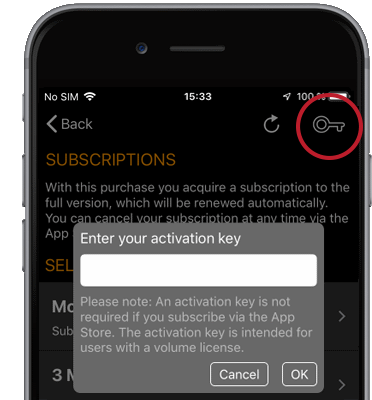
- In the Subscriptions view, press the key icon in the top right corner. A dialog will appear, asking for your activation key (see picture).
- If the activation was successful, the Subscriptions view is updated accordingly, and the expiration date of the bulk license is displayed.
Multiple Devices
To activate a bulk license on multiple iOS devices via a Mobile Device Management system, follow these steps:
- You can use Managed App Configuration to activate multiple devices via your Mobile Device Management (MDM) solution.
- Please contact your MDM vendor for a documentation on how to configure Managed App Configuration in your MDM solution.
- Some MDM solutions require an AppConfig spec file. You can download this file here .
- If your MDM solution does not use a spec file, please configure the Managed App Configuration as following:
- Key = MOAS_ActivationKey
- Type = String/Text
- Value = <Your Activation Key>