
FAQs About Ordering, Payment and Delivery
Where Can I Find the System-ID?
Where Can I Find the System-ID?
In TBarCode SDK
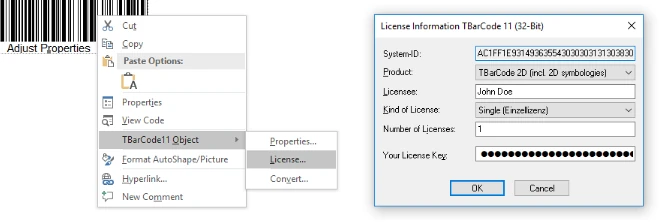
In case you use Microsoft Office:
- Right-click on the inserted TBarCode Object and select License... from the appearing context menu. To see the context menu in Microsoft® Excel® please activate the layout mode (design mode) first.
- A window opens that shows the System-ID with the appropriated license infos.
Alternatively, you can run the supplied SysId.exe tool on the command line or via the [Windows] + R keyboard shortcut:
"C:\Program Files\TEC-IT\TBarCode11\Bin\SysId.exe"
In TBarCode Office
- Start Word or Excel.
- Open the TBarCode Panel in the Add-Ins ribbon and click on the License Link in the panel.
- A window opens that shows the System-ID with the appropriated license infos.
In Barcode Studio, TFORMer and TWedge
- Start the program.
- Select Help or Options from the menu and click on the Licensing menu item.
- A window opens that shows the System-ID with the appropriated license infos.
- Another method for Barcode Studio on macOS®: On the command line enter system_profiler | grep 'Serial Number (system)'.
In TBarCode/X and TFORMer SDK
On UNIX and Linux systems, provide the host name of the target system for the System-ID. On Mac OS provide the serial number of the target system.