
FAQ: TBarCode Office Word Add-In
How To Create a Barcode Using the vCard Format
How To Create a Barcode Using the vCard Format
To create a vCard bar-code for business cards you have to enter the data using the correct data format. Below you can find some samples using the appropriate data structure.
vCard Data Structure:
BEGIN:VCARD
N:Doe;John
TEL:+43 7252 72720
EMAIL:support@tec-it.com
URL:http://www.tec-it.com
ADR:;;Wagnerstrasse 6;Steyr;;4400;Austria
END:VCARD
vCard structure using mail merge data fields:
BEGIN:VCARD
N: «lastname»;«firstname»
TEL: «phone»
EMAIL: «email»
URL: «url»
ADR:;; «address»;«city»;;«zip»;«country»
END:VCARD
Here is a Word Barcode-Add-In screenshot with such merge fields:
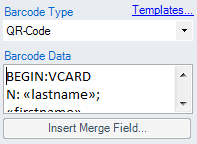
About choosing the correct QR code settings: You can use one of the vCard templates (small, medium, large) included in TBarCode Office.
vCard 3.0 Excel Sheet
Below we give you instructions on how to create a serial letter with our vCard 3.0 Excel sheet.
- Download the Excel Sheet for vCard 3.0 (click the link). The sheet contains a calculated column that creates the data format for the vCard 3.0 standard.
- Enter the contact information into columns A - O.
Note the calculated column vCard V3.0, which will contain the bar code data for the bar code add-in. Line Feeds are encoded through the \x0A escape sequence.
- In your Word mail merge document, select the Excel sheet as data source for the mail merge.
- In the TBarCode Panel click the Templates icon and select vCard 3.0 Medium template. This loads the required QR code settings into the panel.
- Add the serial field placeholder via Insert Fields. Note that in serial letters you are limited to 255 characters in a single field (for workarounds please contact our support).