FAQ TWedge
How to Install TWedge 2.x as Windows Service?
How to Install TWedge 2.x as Windows Service?
We recommend upgrading to TWedge V3 which already includes a system service. If that is not possible, you can proceed as described below.
- This legacy procedure requires the Windows Resource Toolkit utilities Instsrv.exe and Srvany.exe. The former download page is no longer available; see Microsoft’s instructions for creating a user-defined service.
- Open the Command Line (Start -> Run -> “cmd”), go to the installation directory of the Windows Resource Toolkit and enter the following command:
Instsrv TWedge "C:\Program Files (x86)\Windows Resource Kits\Tools\srvany.exe".
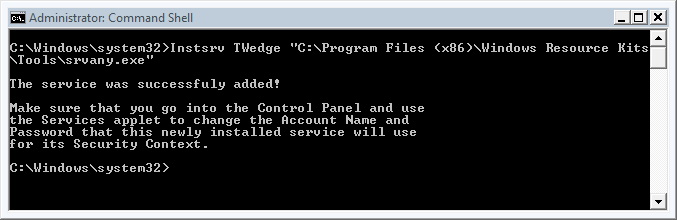
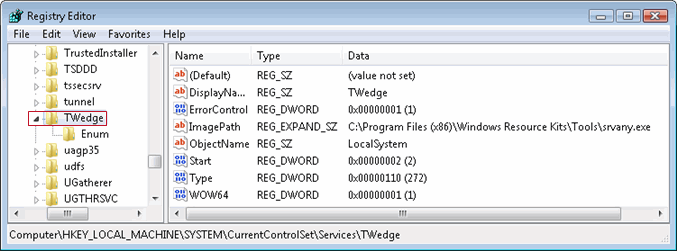
- Open the registry editor (Start -> Run -> “regedit”) and look for the following registry key: HKEY_LOCAL_MACHINE\SYSTEM\CurrentControlSet\Services\TWedge.
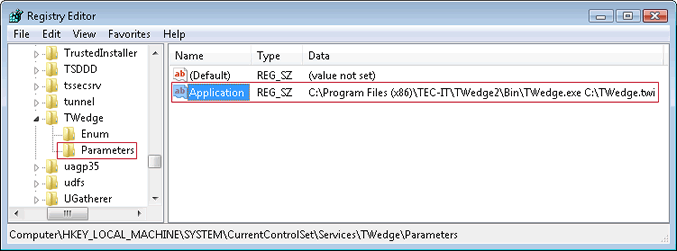
- Now add a "Parameters" key with a value called "Application". It contains the path to the executable of TWedge (default: C:\Program Files (x86)\TEC-IT\TWedge2\Bin\TWedge.exe C:\TWedge.twi). The twedge.twi file opens TWedge with the predefined settings!
- Open the properties of the new TWedge service which you can find in the Control Panel -> Administrative Tools -> Services.
- Go to the “Log On” tab and make assure that the checkbox “Allow service to Interact with desktop” is activated.
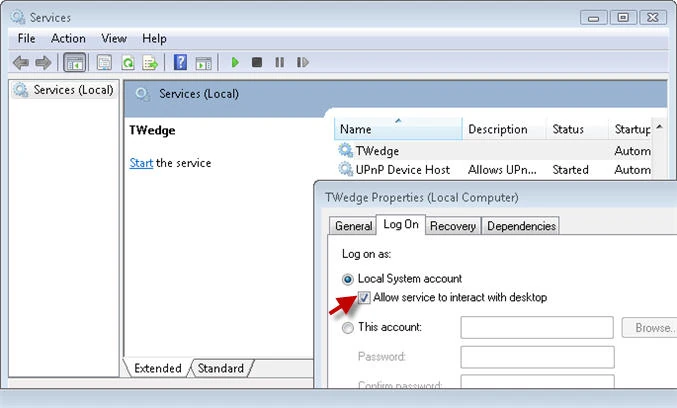
- Run the TWedge service.