
Scan-IT to Office FAQ
App: How to Upload Customer Specific Forms
App: How to Upload Customer Specific Forms
Android
- Open the HTML Form file (eg. MyForm.html) on the device for example by opening the mail attachment or by opening the file in a file manager app.
- Select Open With -> Scan-IT to Office
- The Form should now appear in the app in Forms -> Uploaded Forms
iOS
- Open the HTML Form file (eg. MyForm.html) on the device for example by opening the mail attachment or by opening the file in the Files app.
- Tap the
 button and select Copy to Scan-IT
- The Form should now appear in the app in Forms -> Uploaded Forms
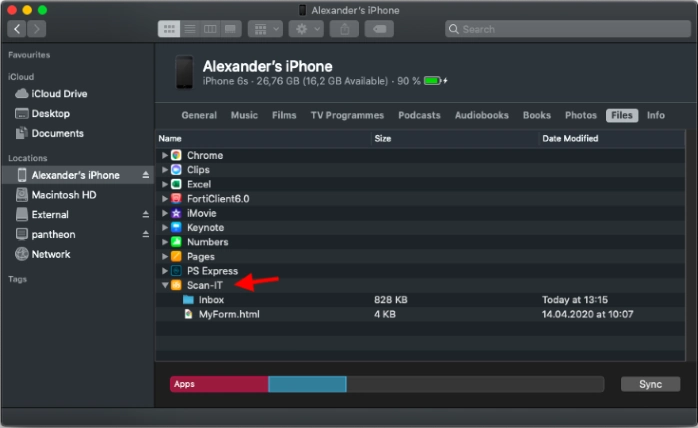
Alternatively you can upload the form files from your Mac to your iOS device using File Sharing. The next few steps show how it works:
- Open Finder on your Mac
- Connect your iPhone or iPad to your Mac
- Select your iOS device in Finder
- Select the Files tab
- Drag and drop your form file on Scan-IT
- Restart the app on your device
- The uploaded form is now displayed in your app
Note: If you are using Windows or an older version of macOS (Mojave or lower) you can find the File Sharing feature in iTunes. For further information, check out this FAQ or see Apple Support.